> ## Documentation Index
> Fetch the complete documentation index at: https://docs.fastfoundation.nimble.la/llms.txt
> Use this file to discover all available pages before exploring further.
# OpenSearch Access
> Grant users access to OpenSearch dashboards and centralized logs
**VPN Access Required**:\
Ensure your VPN (Virtual Private Network) connection is active before attempting to access OpenSearch.
## Overview
Users access OpenSearch through two main mechanisms:
* **Single Sign-On (SSO) Integration** – Authentication is handled via AWS IAM Identity Center
* **Role-Based Access Control (RBAC)** – Users are mapped to roles that define what they can see and do
***
## Configure SSO Access
In the **infrastructure AWS account**:
1. Go to **AWS Identity Center** → **Applications** → **Customer managed**
2. Find and open the **Logs** application
3. Click **Assign users and groups**
4. Switch to the **Groups** tab
5. Select the access groups that need OpenSearch access
6. Click **Assign**
From your SSO portal, open the **Logs** application using an account that belongs to the **Administrators** group.\
This lets you configure role mappings inside OpenSearch.
In OpenSearch:
1. Open the hamburger menu (☰)
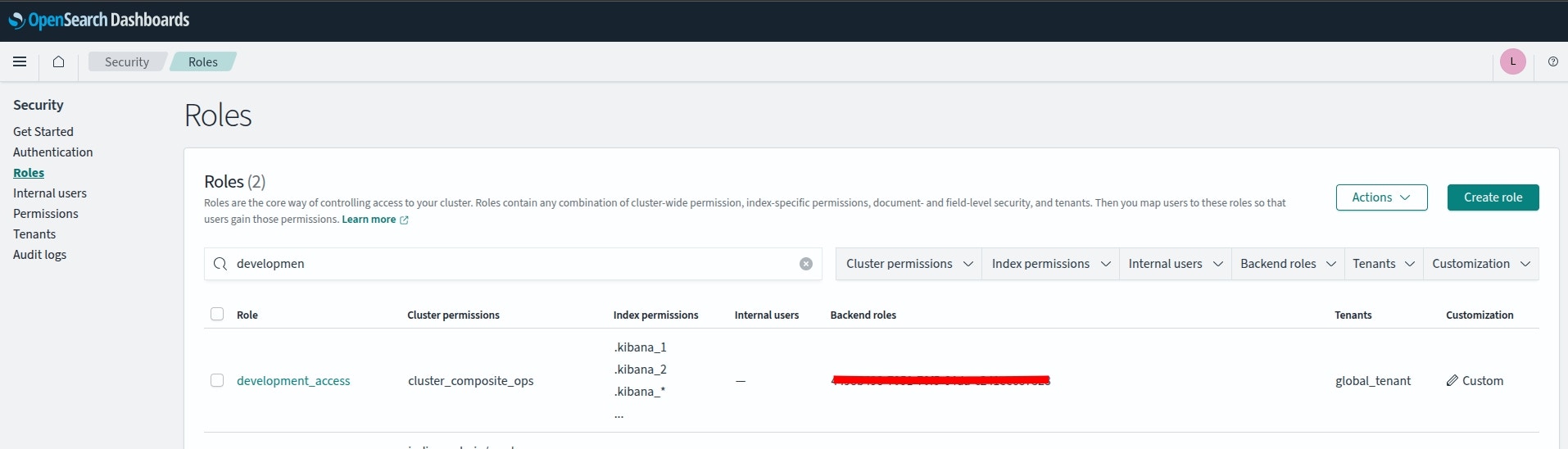
2. Navigate to **Security** → **Roles**
3. Click **Explore existing roles**
4. Locate the appropriate role for your group:
* `development_access` – Development environment access
* `production_access` – Production environment access
* `readall_and_monitor` – Read-only log access
 For each OpenSearch role you want to assign:
1. Open the role (e.g., `development_developers`)
2. Go to the **Mapped users** tab
3. Click **Manage mapping**
4. Select **Add another backend role**
5. Enter the AWS IAM Identity Center **Group ID** (format: `1234abcd-56ef-78gh-90ij-klmnop123456`)
6. Click **Map**
You can find the **Group ID** in AWS Identity Center under **Groups → \[Group Name] → Details**.
Multiple SSO groups can be mapped to the same OpenSearch role.
***
## Common OpenSearch Roles
**Role**: `development_developers`
**Permissions**:
* Read access to development logs
* Create and modify development dashboards
* Export development data
**Typical Groups**:
* DevelopmentTeam
* QATeam
**Role**: `production_developers`
**Permissions**:
* Read access to production logs
* Create and modify production dashboards
* Export production data
* Limited administrative functions
**Typical Groups**:
* Production Developers Team
* SeniorDevelopers
* Cloud Engineers
***
## Troubleshooting OpenSearch Access
Changes to role mappings may take several minutes to take effect.\
Users may need to refresh their browser or log out and back in.
**Possible causes:**
* User's group is not assigned to the Logs application
* User credentials need to be refreshed – Log in again
* Group membership changes are still propagating
**How to fix:**
1. Verify group assignment in AWS Identity Center
2. Ask the user to log out and back in
3. Wait 15–30 minutes for changes to propagate
**Possible causes:**
* Group is not mapped to any OpenSearch role
* Wrong role was mapped for their access level
* Group ID entered incorrectly
**How to fix:**
1. Check role mappings in OpenSearch Security
2. Confirm the correct Group ID from Identity Center
3. Verify that the mapped role grants the required permissions
**Possible causes:**
* Role does not grant access to required indices
* Retention policies have removed older logs
* Logs have not yet been ingested
**How to fix:**
1. Check role permissions for relevant indices
2. Review log retention settings
3. Confirm log ingestion pipeline is working
***
## Best Practices
* **Principle of Least Privilege** – Assign only the minimum access required
* **Separate environments** – Use different roles for development vs. production
* **Review access regularly** – Especially for production logs
* **Document role purposes** – Maintain a clear record of what each role is for
For each OpenSearch role you want to assign:
1. Open the role (e.g., `development_developers`)
2. Go to the **Mapped users** tab
3. Click **Manage mapping**
4. Select **Add another backend role**
5. Enter the AWS IAM Identity Center **Group ID** (format: `1234abcd-56ef-78gh-90ij-klmnop123456`)
6. Click **Map**
You can find the **Group ID** in AWS Identity Center under **Groups → \[Group Name] → Details**.
Multiple SSO groups can be mapped to the same OpenSearch role.
***
## Common OpenSearch Roles
**Role**: `development_developers`
**Permissions**:
* Read access to development logs
* Create and modify development dashboards
* Export development data
**Typical Groups**:
* DevelopmentTeam
* QATeam
**Role**: `production_developers`
**Permissions**:
* Read access to production logs
* Create and modify production dashboards
* Export production data
* Limited administrative functions
**Typical Groups**:
* Production Developers Team
* SeniorDevelopers
* Cloud Engineers
***
## Troubleshooting OpenSearch Access
Changes to role mappings may take several minutes to take effect.\
Users may need to refresh their browser or log out and back in.
**Possible causes:**
* User's group is not assigned to the Logs application
* User credentials need to be refreshed – Log in again
* Group membership changes are still propagating
**How to fix:**
1. Verify group assignment in AWS Identity Center
2. Ask the user to log out and back in
3. Wait 15–30 minutes for changes to propagate
**Possible causes:**
* Group is not mapped to any OpenSearch role
* Wrong role was mapped for their access level
* Group ID entered incorrectly
**How to fix:**
1. Check role mappings in OpenSearch Security
2. Confirm the correct Group ID from Identity Center
3. Verify that the mapped role grants the required permissions
**Possible causes:**
* Role does not grant access to required indices
* Retention policies have removed older logs
* Logs have not yet been ingested
**How to fix:**
1. Check role permissions for relevant indices
2. Review log retention settings
3. Confirm log ingestion pipeline is working
***
## Best Practices
* **Principle of Least Privilege** – Assign only the minimum access required
* **Separate environments** – Use different roles for development vs. production
* **Review access regularly** – Especially for production logs
* **Document role purposes** – Maintain a clear record of what each role is for