

Prerequisites
You will need:- An active VPN connection to your organization’s private network
- AWS Single Sign-On (SSO, now AWS Identity Center) access with ArgoCD application permissions
Accessing ArgoCD
1
Navigate to AWS Access Portal
Open the AWS Access Portal and go to the Applications tab.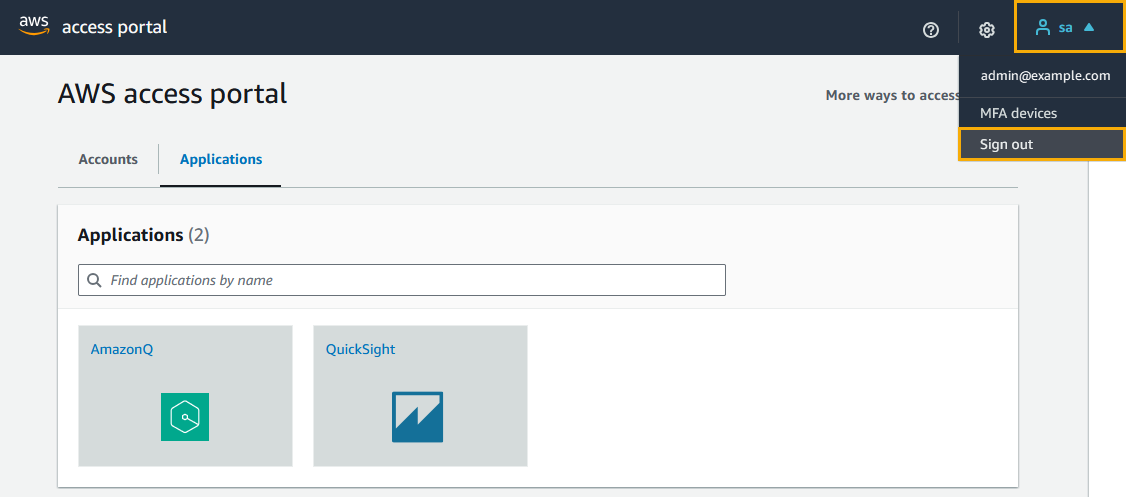
2
Launch ArgoCD Application
Click on the ArgoCD application tile. You’ll be authenticated automatically using your SAML (Security Assertion Markup Language) credentials.
3
Navigate Projects
Once inside, applications are organized by ArgoCD Projects. Use the left-hand panel to switch between projects and access your assigned applications.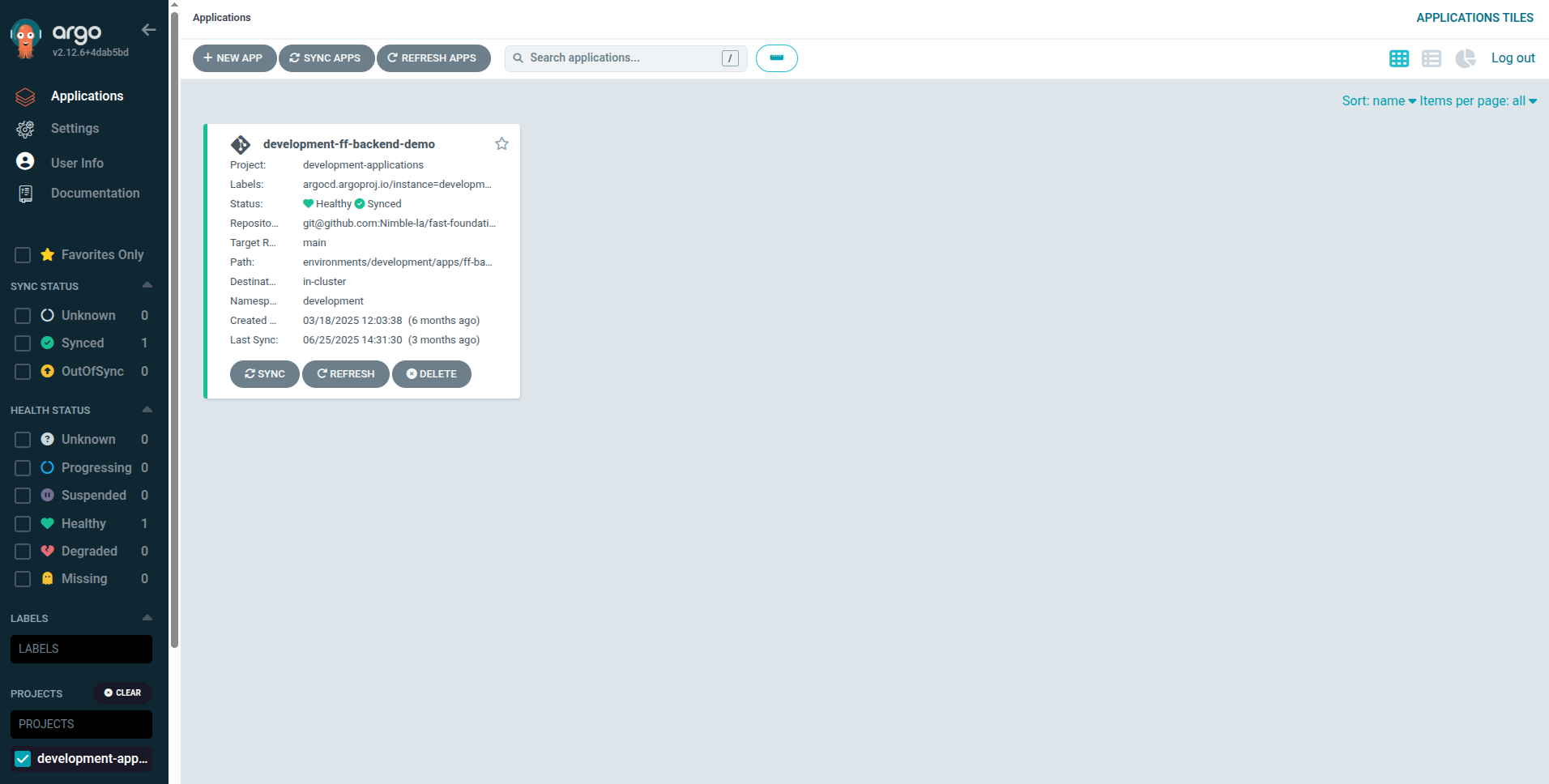
Managing Applications
Application Overview
Every application view in ArgoCD provides a visual map of your Kubernetes resources and their relationships.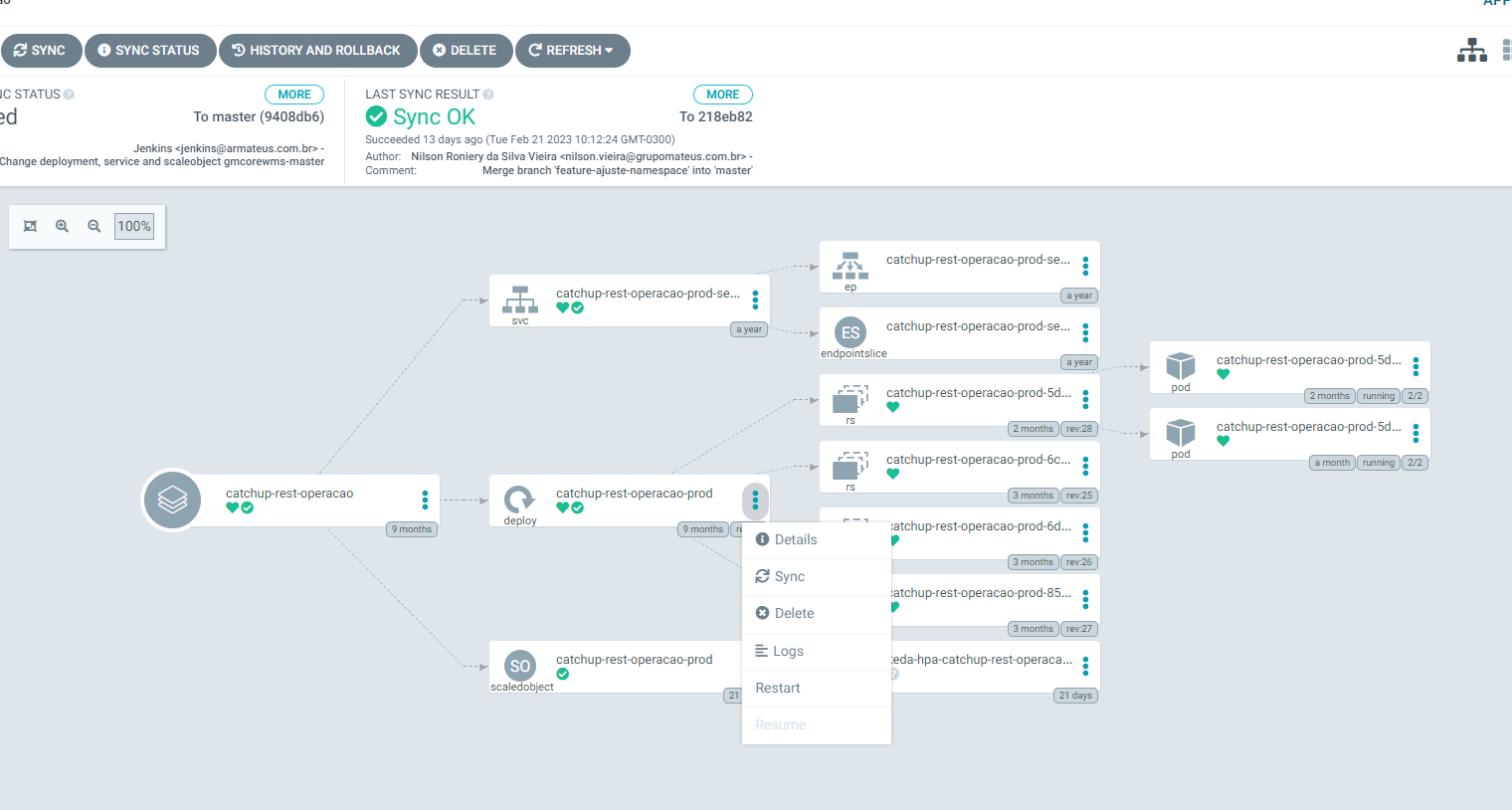
Common Operations
Restarting Application Pods
Steps:- Open your application’s detail view
- Locate the deploy component (this controls Kubernetes pods)
- Select the restart option to safely roll out new replicas
- Updating injected secrets or environment variables
- Applying configuration changes
- Fixing stuck or unhealthy pods
Viewing Application Logs
Access real-time logs directly in the ArgoCD UI to debug issues or verify application behavior. From the application overview dashboard, select your pod and open the Logs tab to view the output immediately.Application Rollback
When you need to rollback an application deployment, you have two options depending on the situation:Option 1: Git Revert (Recommended)
- Identify the problematic commit in your manifests repository (not your application code repository):
- Create a revert commit using Git:
- Monitor ArgoCD - the application will automatically sync to the reverted state
- Verify deployment - ensure the application returns to the expected state
Option 2: Manual Rollback (Emergency Procedure)
This procedure is rarely needed since ArgoCD typically prevents deployment of failed applications and Git revert should be the first option. However, for emergency manual rollbacks:1
Access Infrastructure Tooling Project
Go to the infrastructure-tooling ArgoCD project.
⚠ You need admin access to continue.
⚠ You need admin access to continue.
2
Locate Ruling Application
Search for the 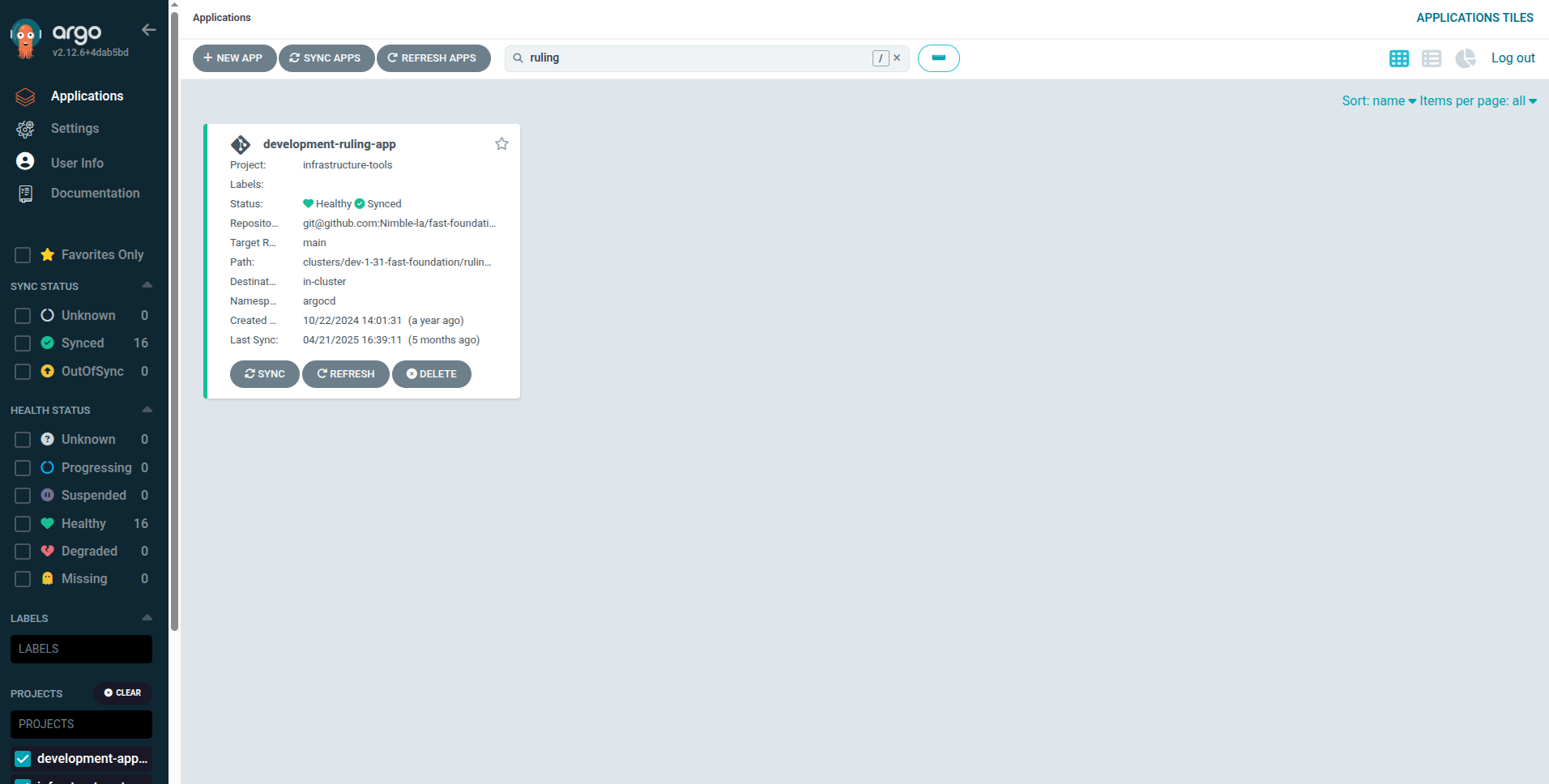
<environment>-ruling-app (e.g., production-ruling-app, staging-ruling-app).3
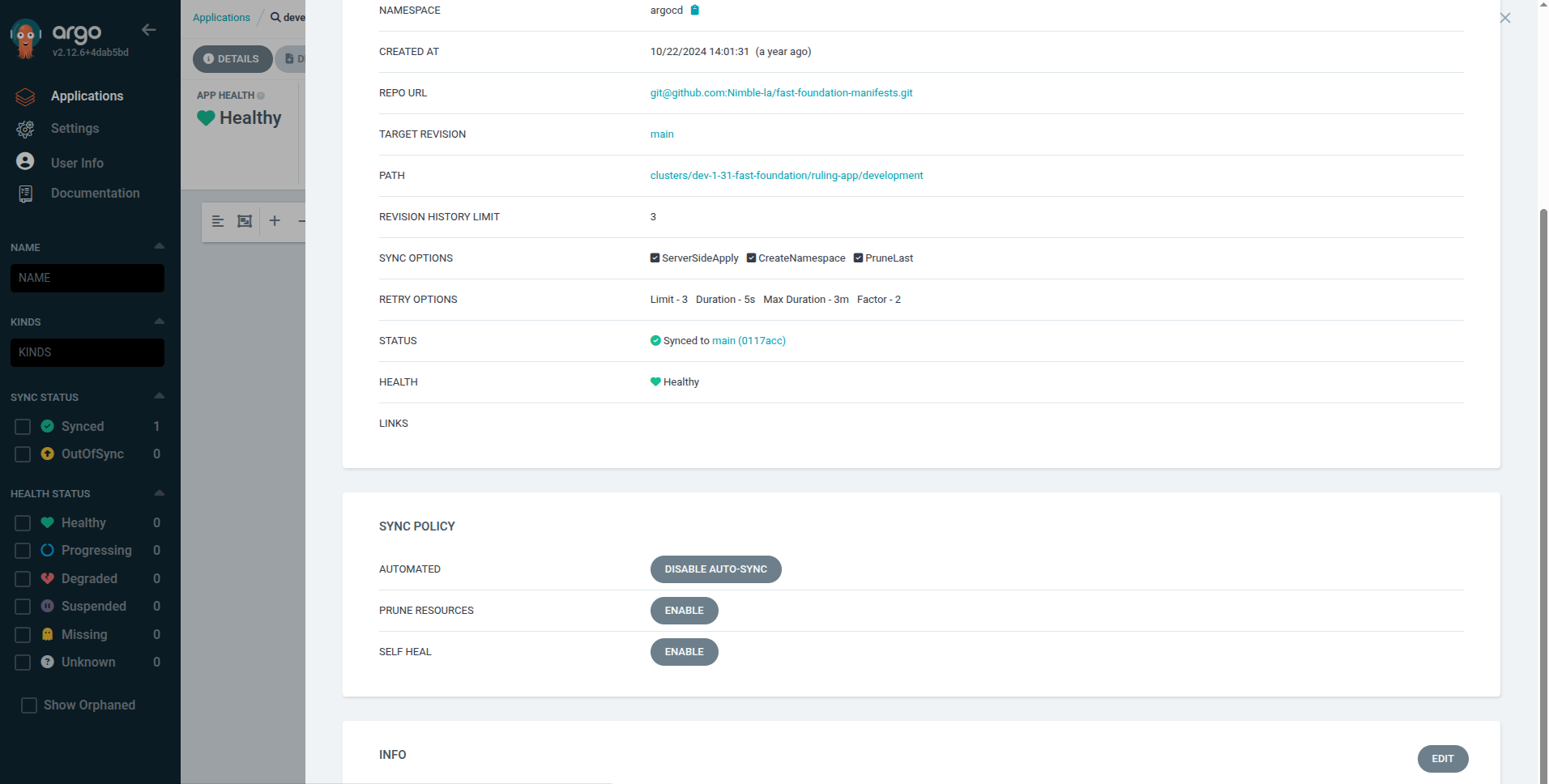
Disable Auto-Sync on Ruling App
- Enter the ruling application
- Open Details
- Scroll to Sync Policy
- Disable Auto-Sync
4
Disable Auto-Sync on Target Application
Go to your target application in the
Repeat the auto-sync disabling process.
<environment>-applications ArgoCD project.Repeat the auto-sync disabling process.
5
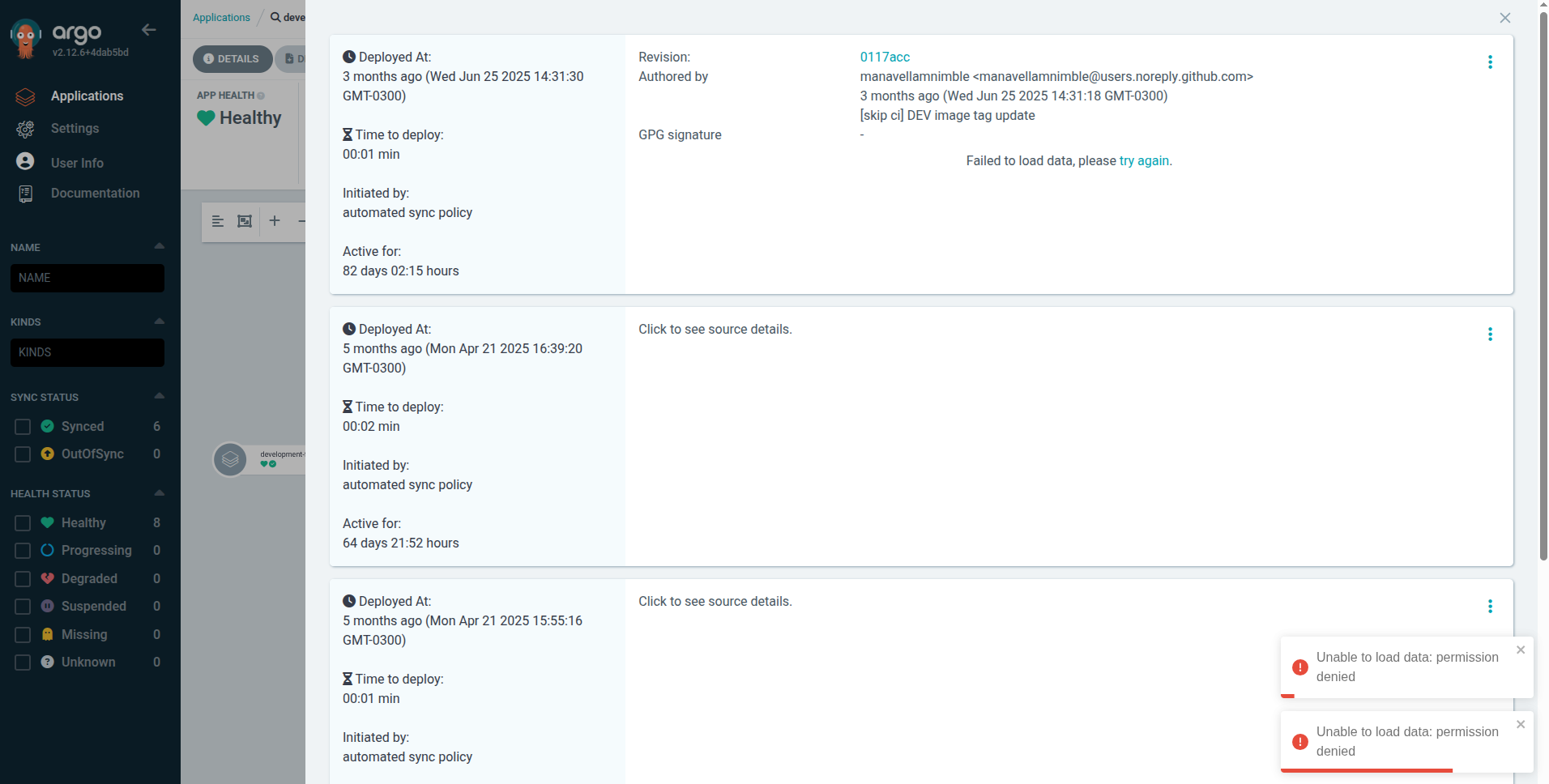
Perform Rollback
- In your application details, open History and Rollback
- Select the version you want to redeploy
- Execute the rollback
Important Considerations:
- Disabling auto-sync here affects all applications in the environment
- The
<environment>-ruling-appis managed by Terraform → do not runterraform applyfor the EKS module during rollback - Always re-enable auto-sync once the issue is resolved
- Coordinate with your team before triggering a rollback
- Document both the reason for rollback and the plan to restore normal sync