

Overview
Users access OpenSearch through two main mechanisms:- Single Sign-On (SSO) Integration – Authentication is handled via AWS IAM Identity Center
- Role-Based Access Control (RBAC) – Users are mapped to roles that define what they can see and do
Configure SSO Access
1
Assign groups to the Logs application
In the infrastructure AWS account:
- Go to AWS Identity Center → Applications → Customer managed
- Find and open the Logs application
- Click Assign users and groups
- Switch to the Groups tab
- Select the access groups that need OpenSearch access
- Click Assign
2
Log in as an Administrator
From your SSO portal, open the Logs application using an account that belongs to the Administrators group.
This lets you configure role mappings inside OpenSearch.
This lets you configure role mappings inside OpenSearch.
3
Map groups to OpenSearch roles
In OpenSearch: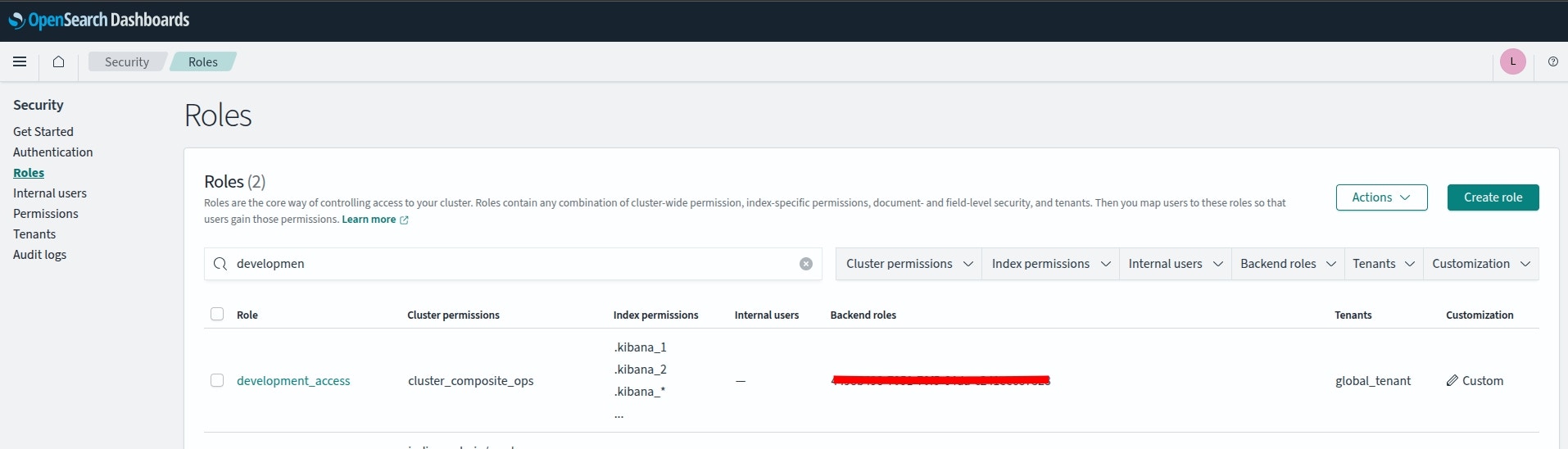
- Open the hamburger menu (☰)
- Navigate to Security → Roles
- Click Explore existing roles
- Locate the appropriate role for your group:
development_access– Development environment accessproduction_access– Production environment accessreadall_and_monitor– Read-only log access
4
Add backend role mappings
For each OpenSearch role you want to assign:
- Open the role (e.g.,
development_developers) - Go to the Mapped users tab
- Click Manage mapping
- Select Add another backend role
- Enter the AWS IAM Identity Center Group ID (format:
1234abcd-56ef-78gh-90ij-klmnop123456) - Click Map
You can find the Group ID in AWS Identity Center under Groups → [Group Name] → Details.
Multiple SSO groups can be mapped to the same OpenSearch role.
Common OpenSearch Roles
- Development Developers
- Production Developers
Role:
development_developersPermissions:- Read access to development logs
- Create and modify development dashboards
- Export development data
- DevelopmentTeam
- QATeam
Troubleshooting OpenSearch Access
User can't access Logs application
User can't access Logs application
Possible causes:
- User’s group is not assigned to the Logs application
- User credentials need to be refreshed – Log in again
- Group membership changes are still propagating
- Verify group assignment in AWS Identity Center
- Ask the user to log out and back in
- Wait 15–30 minutes for changes to propagate
User sees 'Access Denied' in OpenSearch
User sees 'Access Denied' in OpenSearch
Possible causes:
- Group is not mapped to any OpenSearch role
- Wrong role was mapped for their access level
- Group ID entered incorrectly
- Check role mappings in OpenSearch Security
- Confirm the correct Group ID from Identity Center
- Verify that the mapped role grants the required permissions
User can't see expected log data
User can't see expected log data
Possible causes:
- Role does not grant access to required indices
- Retention policies have removed older logs
- Logs have not yet been ingested
- Check role permissions for relevant indices
- Review log retention settings
- Confirm log ingestion pipeline is working
Best Practices
- Principle of Least Privilege – Assign only the minimum access required
- Separate environments – Use different roles for development vs. production
- Review access regularly – Especially for production logs
- Document role purposes – Maintain a clear record of what each role is for